Frequently Asked Questions (FAQ) - USB-C Cable Differences

USB-C Cables

USB-C Cable Introduction

As technology continues to evolve, many companies are moving toward using USB-C as the standard for delivering power and data to laptops and other devices. While USB-C can be very powerful, not all USB-C cables or ports are the same, and the differences are not always obvious. This can make things confusing, since most USB-C connectors look identical, with only small logos or labels to indicate their capabilities. This page is intended to help explain those differences. If you still have questions, please reach out to the Technology Department here at Miramar College.


USB-C Cable Differences Table

USB-C Type and LogoUSB-C Capabilities

USB 2.0

Logo for USB-C USB 2.0
  • Year: 2014
  • Max Speed: 480 Mbps
  • Power Delivery: Up to 2.5W standard; higher with USB-C Power Delivery
  • Video Support: No native video
  • Typical Use: Basic charge cables, low-cost devices
  • Notes: Many USB-C cables are still only USB 2.0 internally

USB 3.1 Gen 1

Logo for USB-C USB 3.1 Gen 1
  • Year: 2014
  • Max Speed: 5 Gbps
  • Power Delivery: Up to 100W with USB Power Delivery
  • Video Support: DisplayPort Alt Mode (if supported)
  • Typical Use: Standard USB-C ports on early laptops, docks
  • Notes: First “high-speed” USB-C implementation

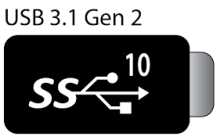
USB 3.1 Gen 2

Logo for USB-C USB 3.1 Gen 2
  • Year: 2014
  • Max Speed: 10 Gbps
  • Power Delivery: Up to 100W
  • Video Support: DisplayPort Alt Mode
  • Typical Use: Higher-end USB-C ports, SSDs, docks
  • Notes: Same time as Gen 1, but required better controllers/cables

Thunderbolt 3

Logo for USB-C Thunderbolt 3
  • Year: 2015
  • Max Speed: 40 Gbps
  • Power Delivery: Up to 100W
  • Video Support: Dual 4K or single 5K
  • Capabilities: PCIe + DisplayPort + USB
  • Typical Use: High-performance docks, eGPU, multi-display
  • Notes: First to use USB-C connector for Thunderbolt

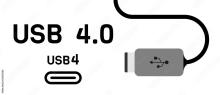
USB4

USB4.0 Type C
  • Year: 2019
  • Max Speed: Up to 40 Gbps
  • Power Delivery: Up to 100W (240W with USB Power Delivery 3.1)
  • Video Support: DisplayPort + optional Thunderbolt compatibility
  • Typical Use: Modern laptops, future-proof USB-C ports
  • Notes: Based on Thunderbolt 3 spec

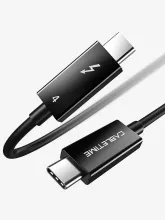
Thunderbolt 4

USB-C Thunderbolt 4 Cable
  • Year: 2020
  • Max Speed: 40 Gbps
  • Power Delivery: Up to 100W (required baseline)
  • Video Support: Dual 4K or single 8K
  • Capabilities: Guaranteed PCIe performance, better dock compatibility
  • Typical Use: Enterprise laptops, premium docks
  • Notes: Not faster than TB3—just stricter and more reliable


USB-C DisplayPort Alt Mode Information

DisplayPort Logo

Another logo to look out for is the DisplayPort symbol next to a USB-C port. This indicates that the port supports video output using DisplayPort Alt Mode over USB-C. Not all USB-C ports support this feature, and it also requires the correct cable. For example, a USB 2.0 USB-C cable does not support video output. This becomes important when connecting to external monitors or docking stations, especially if your laptop does not support DisplayPort Alt Mode.

Compatibility can also vary when mixing different USB-C technologies. For instance, if you have a laptop with a USB 3.1 Gen 1 port and connect it to a Thunderbolt 4 docking station, some features may not work as expected. Basic functions like keyboard, mouse, and standard USB devices will still work, but video output or full docking capabilities may be limited or unavailable. This is because Thunderbolt and standard USB handle data, power, and video differently, even though they use the same USB-C connector.